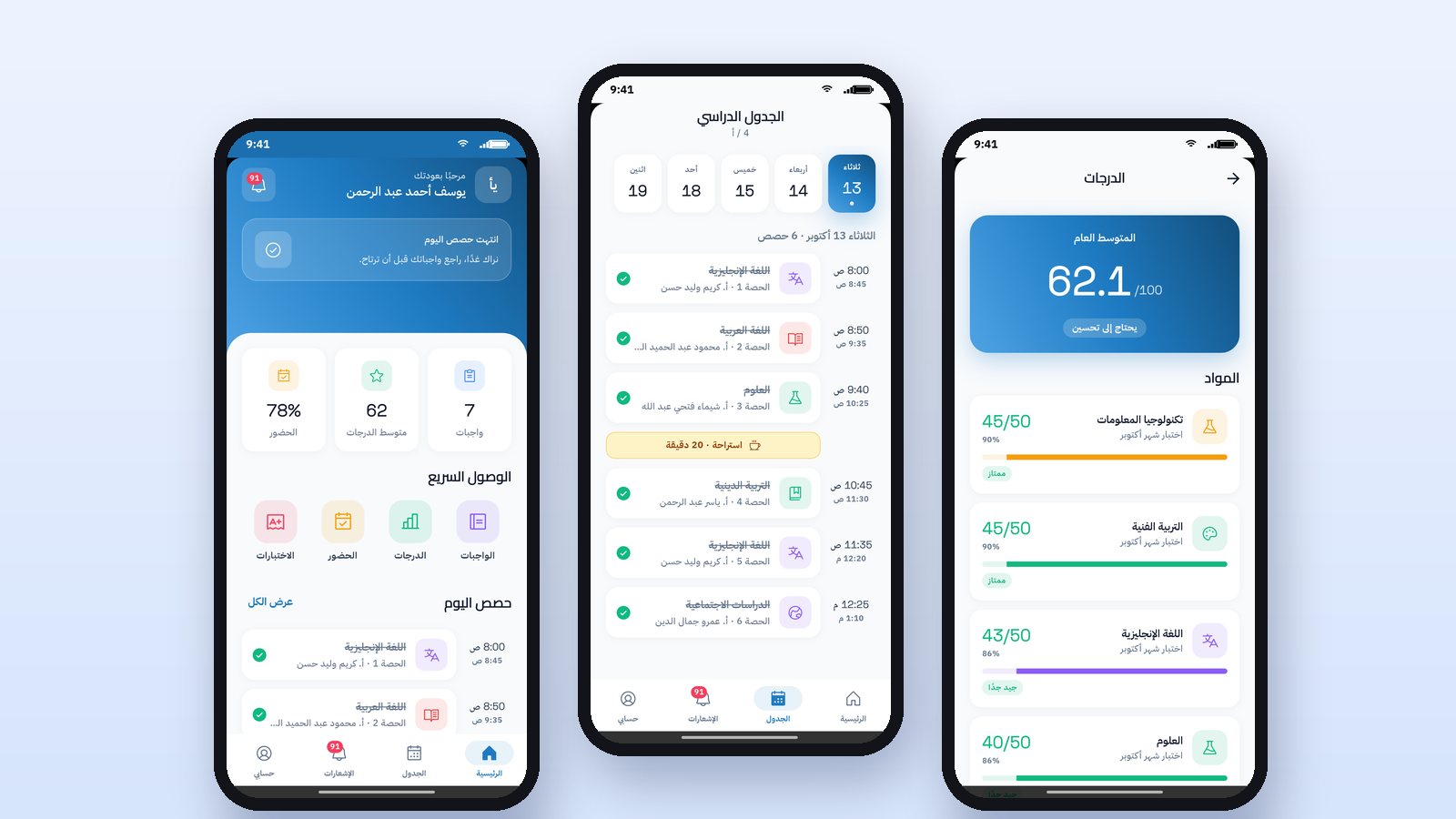
The student app is the student's daily planner on their phone: from it they see today's lessons, the homework due and its deadlines, hand in an answer as text, a photo or a file, see their grades and attendance, and take online exams on time. A good app cuts down the question "what do we have to do tomorrow?" because the answer is always in front of the student.
What does the student see on the home screen?
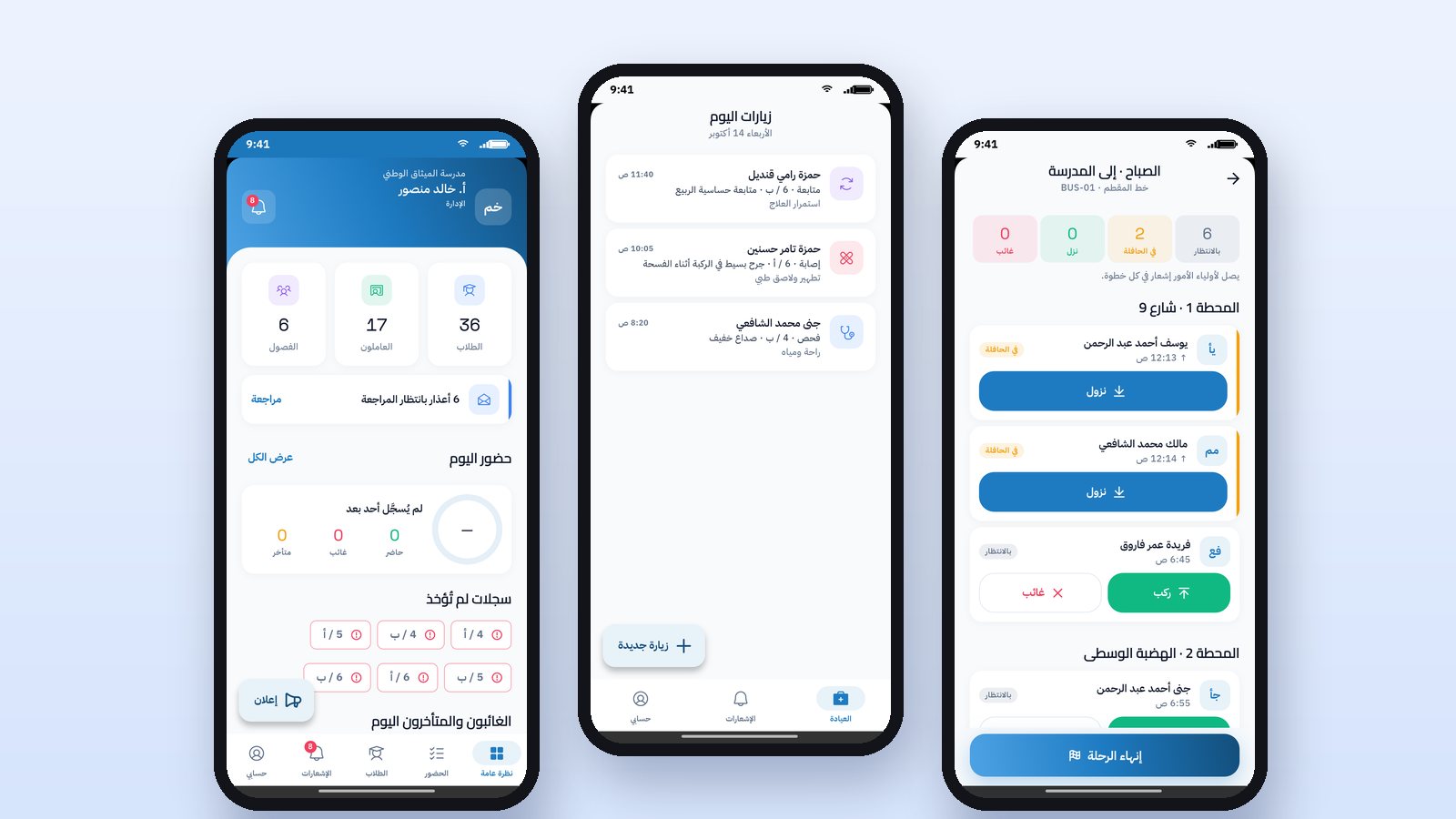
The home screen should answer at a glance: what is the lesson now? How many homework items have I not handed in? What is my grade average and attendance rate? Below that are quick links to homework, grades, attendance and exams, then today's lessons with their times and teachers, then upcoming homework.
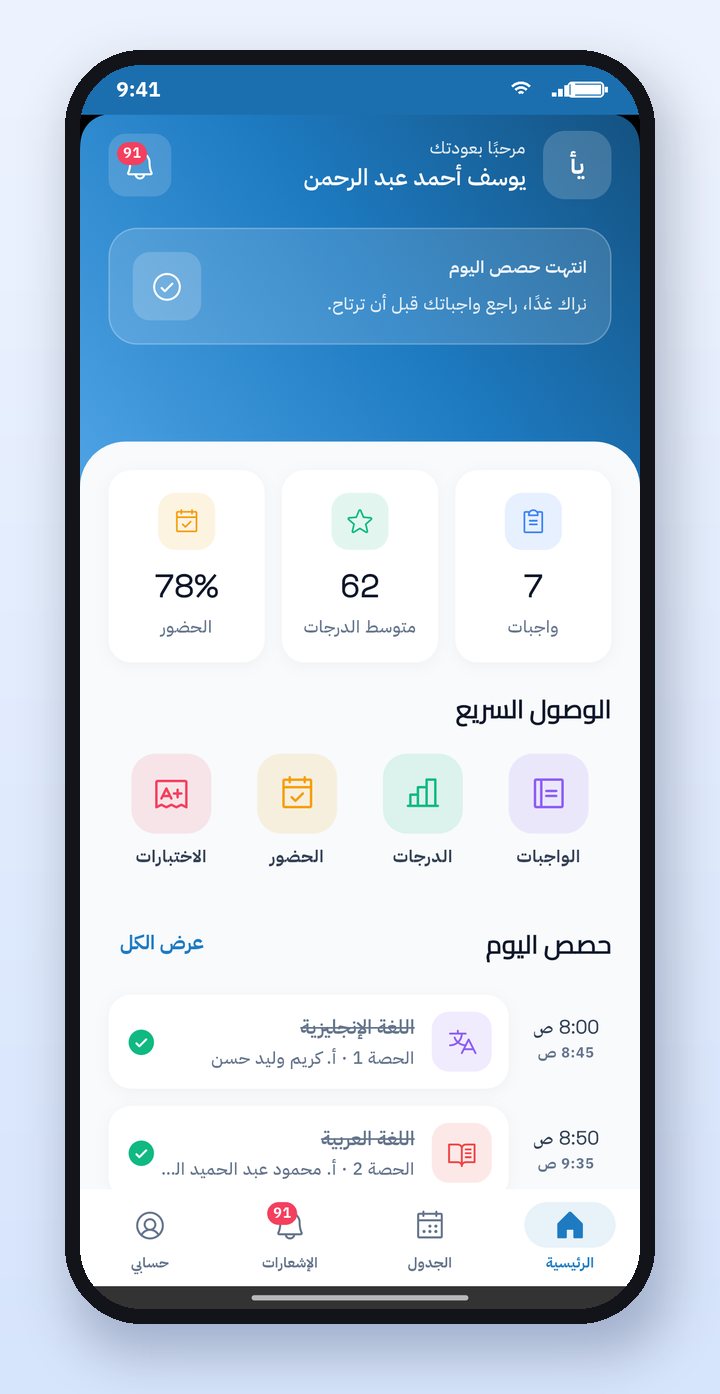
How does a student hand in homework from the phone?
The student opens Homework and chooses the assignment, reads the instructions and opens the attachments the teacher added, such as a worksheet or a video link. Then they write their answer or attach a photo of their paper or a file, and tap "Submit homework". A notification goes to the teacher, and the status becomes "Submitted, awaiting marking". The student can edit their answer as long as the teacher has not marked it yet, and if the teacher sends it back for changes, they get a notification.
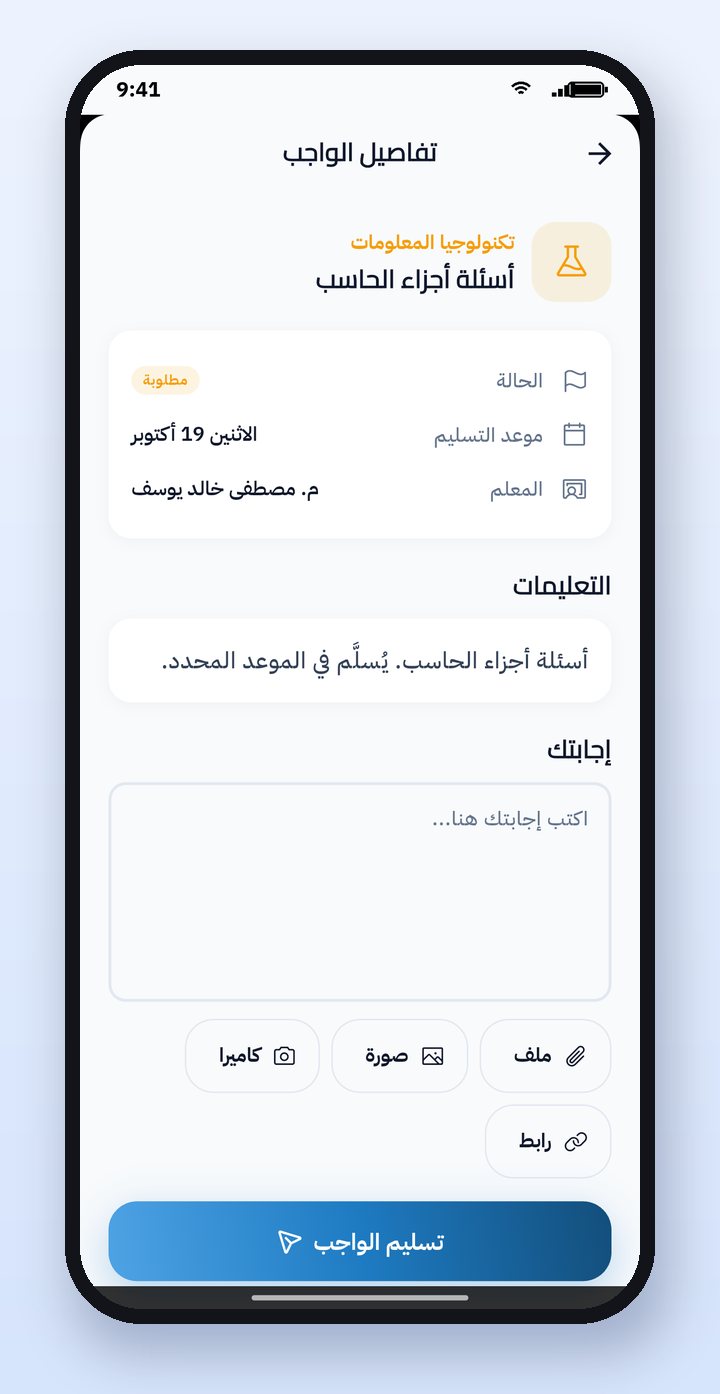
Timetable, grades and attendance
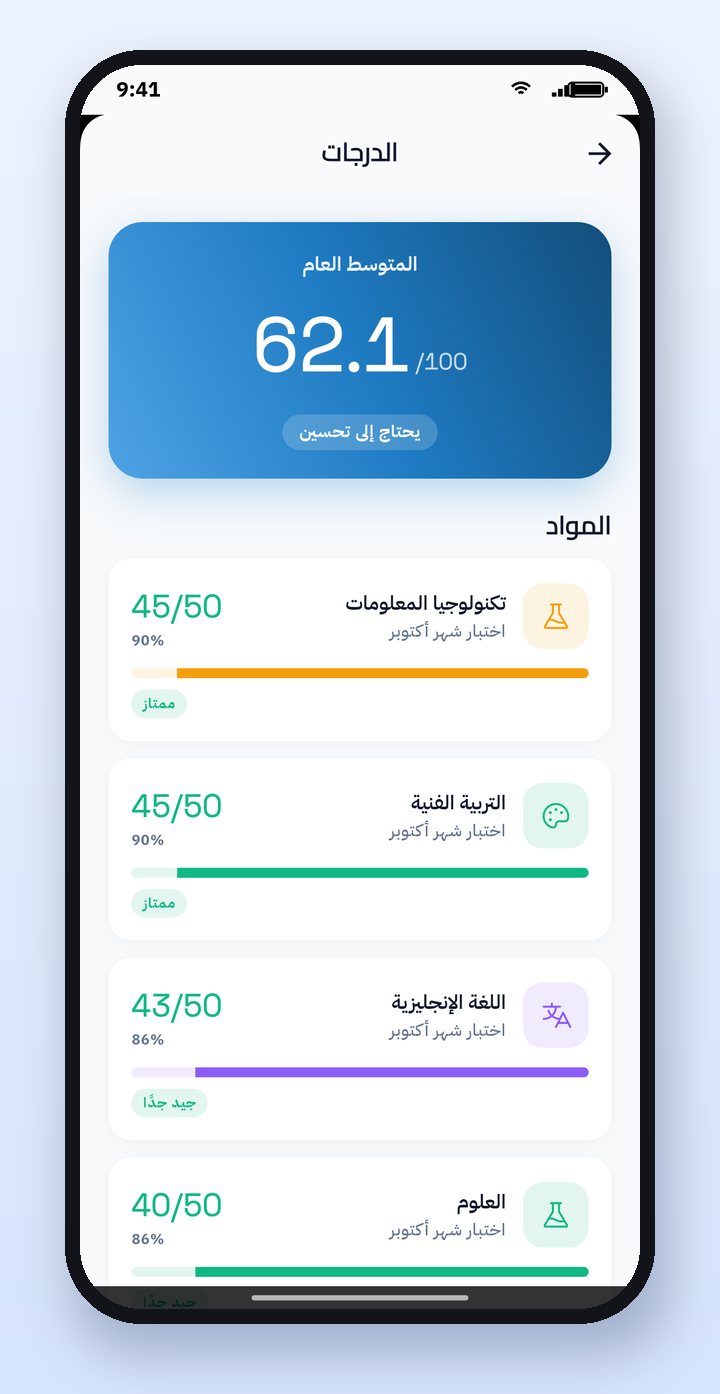
In the weekly timetable the student picks a day and sees their lessons with their times and teachers. In Grades they see the overall average and each subject's grade, and tap a subject to see the details of each exam. Attendance is a monthly calendar with the status of each day and the attendance rate, and the reason for absence if there is one.
Online exams and exam dates
The student sees the online exams available to them at their scheduled time, and the results of those they have taken when the teacher allows them to be shown. If the teacher adds more questions than the number of questions a student gets, each student receives a random set of them, which reduces cheating, as we explained in The question bank and online exams. The student also finds the exam dates the school sets for each subject, and the seat numbers during the exam season.
What makes students actually use the app?
- Timely notifications: new homework, a grade, or a message from the teacher arrives the moment it happens.
- Easy submission: a photo from the camera is enough, with no printing or scanning.
- Language and direction: a student at a language school may prefer English, and the app supports both languages.
- No extra accounts: the student signs in with an account the school gives them, and the same app serves the parent with their own account.
How this works in Prima Schools
The Prima Schools app is one app for the student and the parent, and each chooses their account type when signing in. It works on iPhone and Android in Arabic and English, and everything in it comes from the school's own system: homework that a teacher publishes from the Prima Staff app appears to the student immediately. Watch the steps in the app tutorial videos, and read about the parent side in The parent app.
Frequently asked questions
Can a student hand in homework with a photo from the camera?
Yes. The student writes their answer or attaches a photo or a file, then taps Submit homework, and a notification goes to the teacher.
Can the answer be edited after submission?
Yes, as long as the teacher has not marked it yet. If the teacher sends it back for changes, a notification goes to the student.
Do the student and the parent use the same app?
Yes. It is a single Prima Schools app, and the user chooses on sign-in: student or parent, each with their own account.
Does the student see the online exam result immediately?
The teacher decides: the result can be shown as soon as the exam ends, or hidden until the teacher decides to publish it.