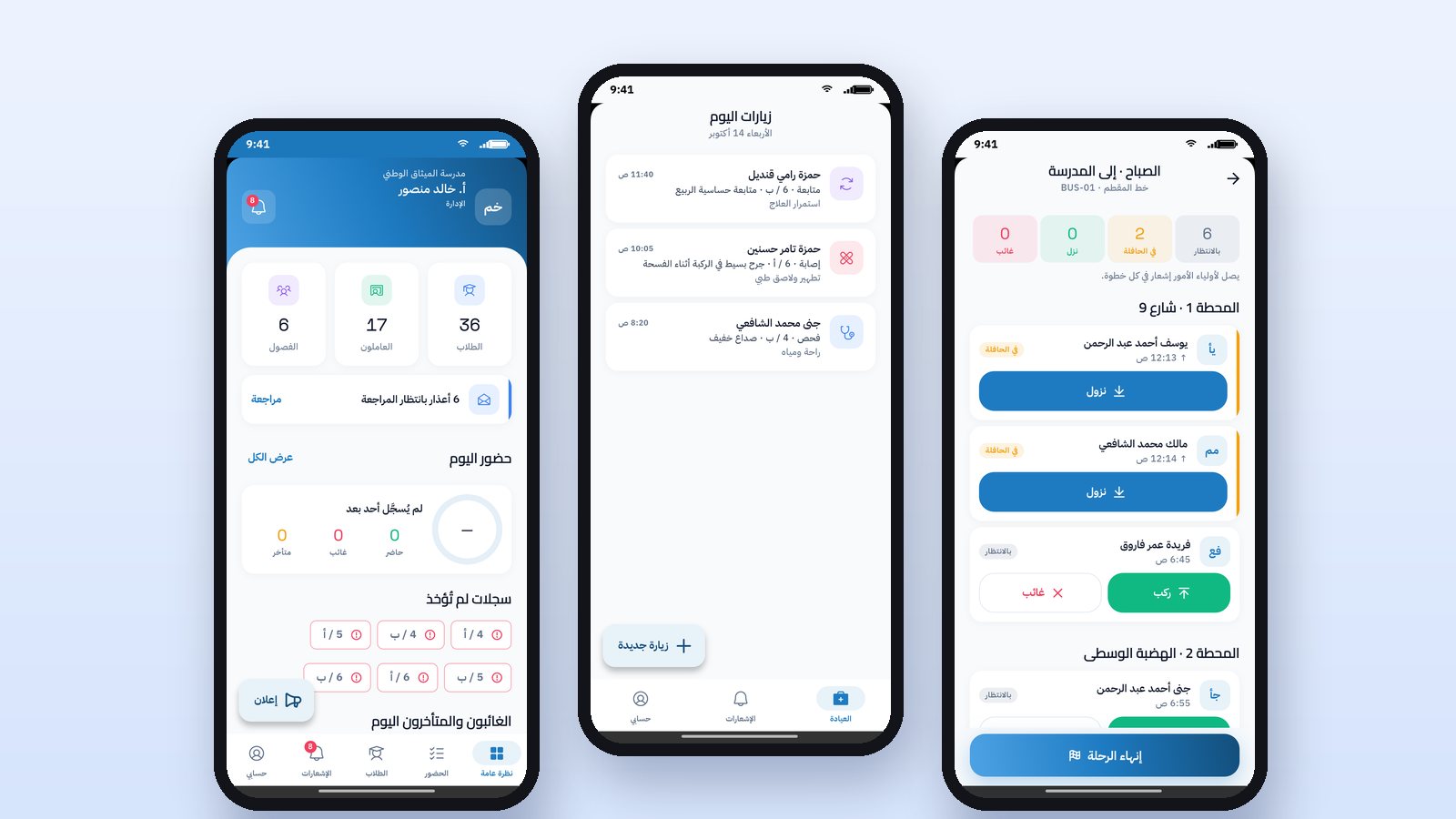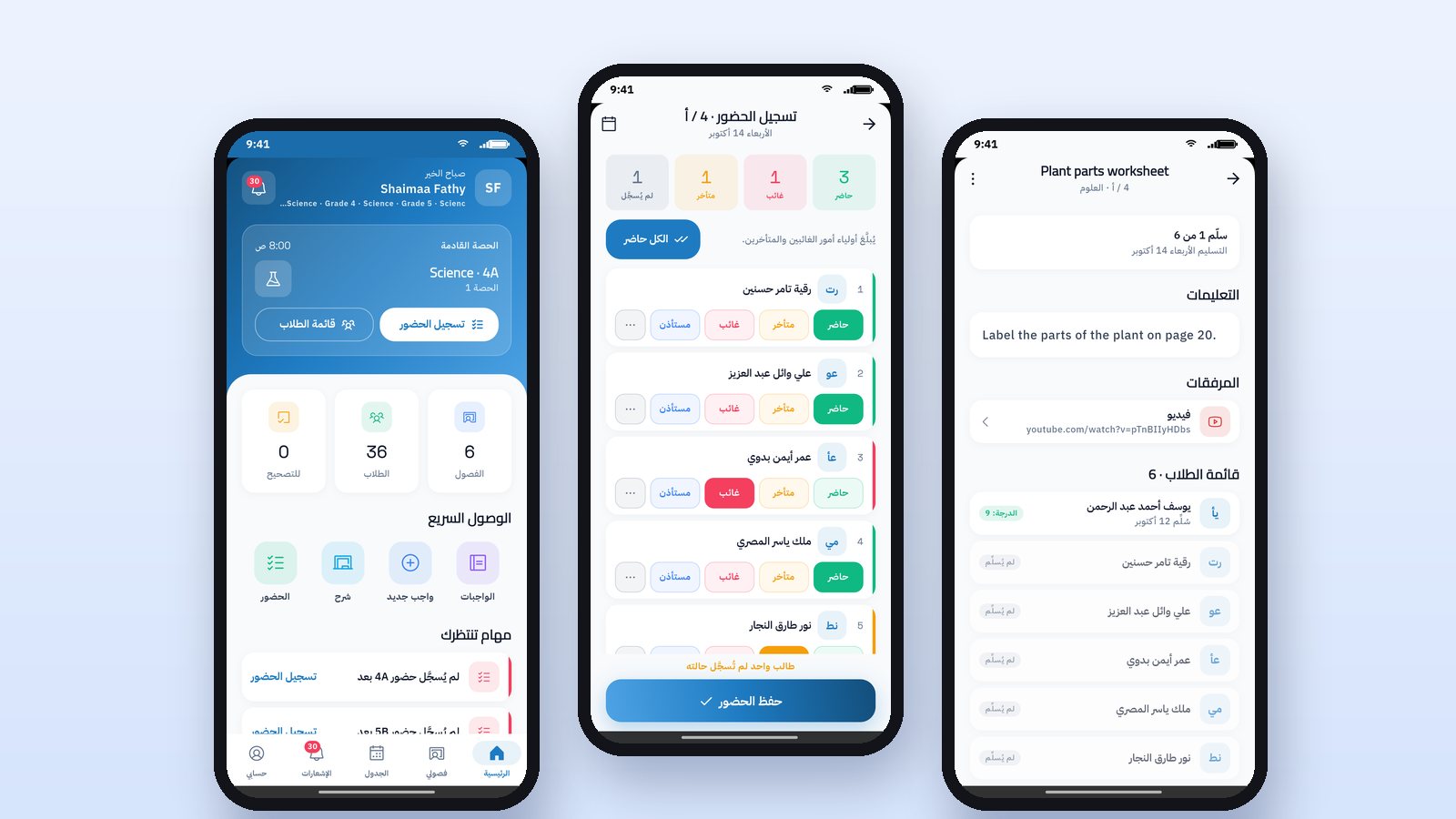
A teacher app cuts the most repeated tasks in a teacher's day down to a few taps on the phone: recording class or lesson attendance, posting homework with its files, marking student answers, entering exam grades, and replying to parents' messages. Most importantly, everything the teacher records reaches students, parents and the school administration immediately, without anyone transferring it by hand.
Why does a teacher need an app, not a page on a computer?
A teacher does not sit at a computer in the first lesson. If recording absence needs a device in the staff room, they will put it off until break, and the news of the absence reaches the parent hours later. The app makes attendance part of the start of the lesson itself, and homework part of its end.
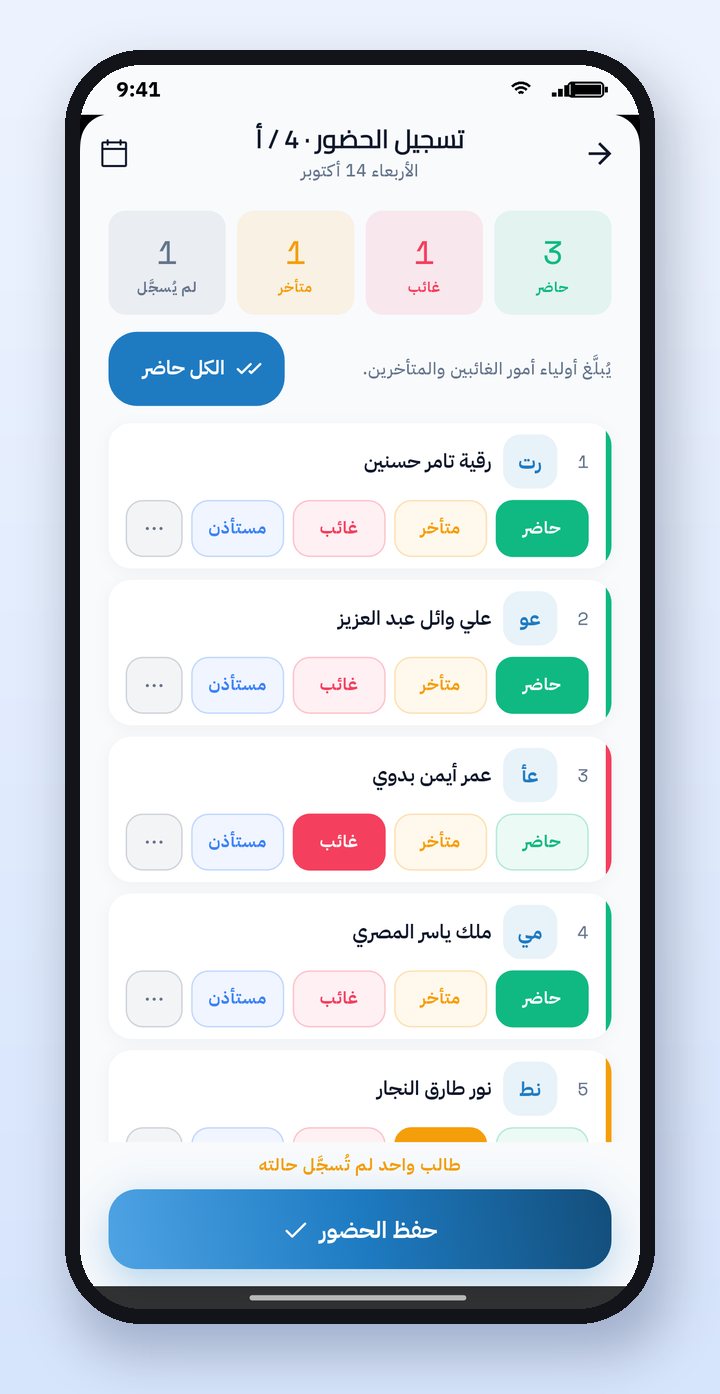
Recording attendance in under a minute
The home screen shows the classes whose attendance has not yet been recorded. The teacher taps "Take attendance", then "All present", and changes the status only of the absent or late students. On saving, a notification goes to the parents of the absent and late students. If the school records attendance for every lesson, the teacher finds today's lessons from the timetable, and next to each lesson whether its attendance has been taken. We explained the importance of immediate notification in Recording absence electronically and notifying parents at the same moment.
Posting homework to several classes at once
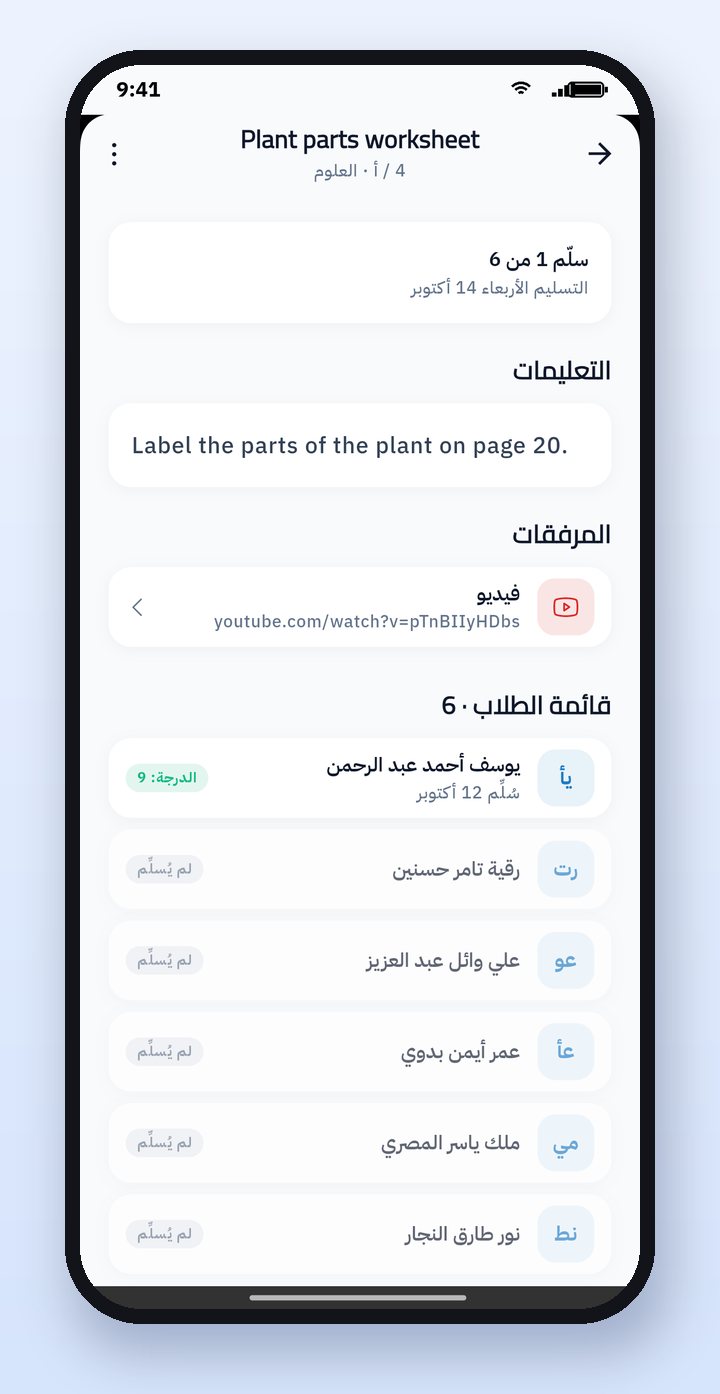
From "New homework", the teacher chooses the subject and classes, writes the title and instructions, attaches a file or photo, takes a picture directly with the camera, or adds a video link. Then they set the due date and post. The homework reaches the students of all the selected classes and their parents with a notification. A lesson "explanation" can also be posted instead of homework, so it reaches students to read without any submission.
Marking and returning answers for revision
On the homework page the teacher sees the list of students and the submission status of each. They open a student's answer and enter the grade and approve it, or return the answer to the student to revise with a note. When the grade is approved, a notification reaches the student and parent.
Entering exam grades
The teacher chooses the exam, then the class and subject, and writes each student's grade the way they want it displayed, such as 30 out of 50, along with the percentage that counts toward the average. On saving, the result reaches students and parents. The grades appear in the performance reports we discussed in Academic performance reports.
What else does the teacher find in the app?
- Timetable and today's lessons: today's lessons with their times, and the full weekly timetable.
- Online exams: creating an exam and importing questions from the question bank, which we covered in Question bank and online exams.
- Exam dates: adding an exam date for a class, which sends a notification to students and parents.
- Weekly plan: a new week with the lesson, objectives and activities, visible to the family. Details are in The teacher's weekly plan.
- Messages and behavior notes: replying to parents, and recording a positive note or one that needs follow-up.
How this works in Prima Schools
The Prima Staff app is the app for teachers and staff in the Prima Schools system, and it runs on iPhone and Android in Arabic and English. The teacher signs in with their school account, sees only their own classes and subjects, and works with the same data the administration uses on the website. All the steps above are shown in the app tutorial videos.
Frequently asked questions
How long does it take to record class attendance from the app?
Usually under a minute: "All present", then change only the absent and late students, and saving notifies their parents automatically.
Can a teacher post homework to more than one class?
Yes, they choose several classes for the same homework, and it reaches all their students and parents with a single notification when it is posted.
Does the teacher see all the students in the school?
No. The teacher sees only their own classes and subjects, according to what the administration sets in their timetable and assignments.
Does the app work for administration and staff too?
Yes. The same app opens on the screen for each role: administration, driver, nurse, librarian, security and supervisor.